Areas on our websites almost always correspond to specific areas in the dashboard.
Common types of content are:
We will cover the most common types of content, custom content types will differ slightly from site to site due to the custom nature, but the basics remain the same.
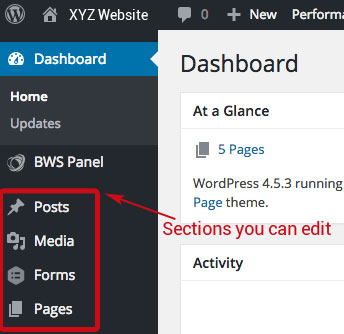
You can see all the content from each type by selecting it from the sidebar in the Dashboard, from there clicking the title of the content, be it a page or post or other will take you to the editing screen.
The most common type of content is the “Page”, which is usually something like the “About Us” or “Contact” page. Pages are hierarchal static objects that exist to deliver specific information to the front of the site. In the back end they consist of a Title, a Content Area, a Template (which decides what the page will look like) and optionally a Parent (which determines hierarchy). The Title is the name of the page and the Content Area will be what is displayed on the front end of the website, you can find out how to edit these here.


The next most common type of content is the “Post”. Posts will usually appear in groups such as news feeds and archive pages. They can also be displayed as a whole, individually if you click on the title or the “read more” links. Posts are not hierarchal (they have no “Parents” like pages do) but still consist of a Title and Content Area with the addition of an Excerpt Area (displayed on feeds in place of the Content Area, usually 25 words or less) and a Category (easy way of assigning a post to a specific feed section of the site, like the front page for example). Editing posts is much the same as pages, you can find information here.
Whenever you make changes to, or add any type of content on the site, you must always publish the changes that you make in order to save them and make the changes visible on the site.
Publishing is done through the “Publish” box on the top right of each edit page:

You must provide a title before publishing or the content will not save and you may lose all your work.
Generally all you will ever need to do is press “Update” when you are finished editing. However the occasion may come up where you are drafting changes and want to preview before saving, in such a case you would press “Preview changes” a window will pop up and you can view the changes you are making to the site without committing to them.
You can also change the Status of the post to “Pending Review” and “Draft”. Keep in mind that if either of these Statuses are selected the content will not appear on the site, this may result in broken menus/links and pages looking less than to be desired.
You may make a page/post hidden from the public by changing the Visibility of it, Public will allow everyone to view the content, Private will only allow logged in members to view and Password protected prompts you to set a password that browsers will need to view the page.
Changing the date that the post will be “Published” on is useful for backdating news, or setting a post to launch in the future, just select the edit button next to the date, modify using the fields provided and press save.
