
Apple Mail
- Open the Mail application
- From the File menu choose Add Account
- Fill in your account details, Full name is the name that the email is sent "From".
- Press continue
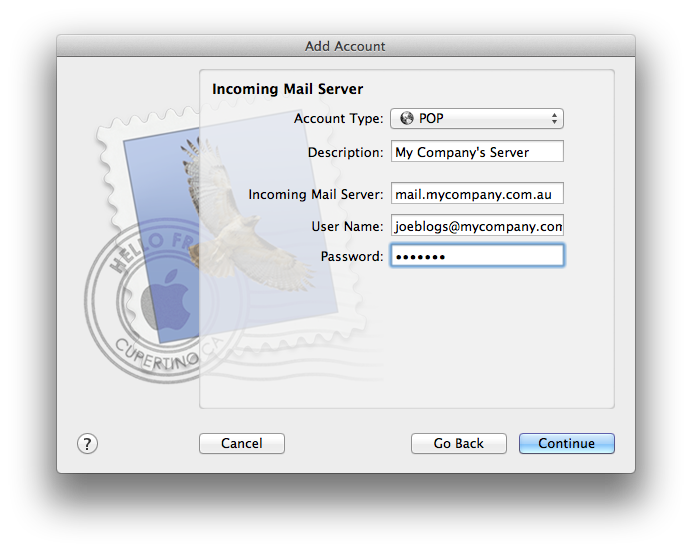
- In the Incoming Mail Server screen, select POP from the Account Type list, and complete your information as follows:
- Description
- A meaningful name of your account. For your reference only
- Incoming mail server
- POP mail.yourdomain.com.au - for example mail.stayingintouch.com.au or mail.mybiz.org
- User Name
- Your full email address.
- Password
- Your email account password. Sent in your setup email or call us for a new one (we do not keep these on file for privacy and security reasons)
- Press continue
- In the Outgoing Mail Server screen complete your information as follows:
Outgoing mail servers are specific to your internet connection, contact your internet provider if you can't find the correct outgoing server from our list - Description
- The name for this mail server (e.g. Bigpond or Optus).
- Outgoing mail server
- Your ISP's outgoing server e.g - mail.bigpond.com or mail.optusnet.com.au, to help find yours a full list can be found here: http://support.stayingintouch.com.au/list-of-common-isp-outgoing-mail-smtp-servers/
- Authentication
- You can leave the authentication section blank in most cases
- Press continue
- Press Create


To avoid overloading your email server
-
In Mail select Mail > Preferences.
-
Click the Accounts tab.
-
Select the account for which you wish to change the settings.
-
Select the "Remove copy from server after retrieving a message" option.
Select a time frame from the pop-up menu.

-
Immediately: When Mail reads the email message, the email message will be removed from the server. The message will exist only in Mail, not on any other clients.
-
After one day: One day after Mail reads the email message, Mail will remove the message from the server. The message will exist only in Mail, not on any other clients.
-
After one week: This setting works the same as "After one day", except that Mail waits one week.
-
After one month: This setting works the same as "After one day", except that Mail waits one month.
-
When moved from Inbox: Mail will remove each message from the server only after the message is moved out of the Inbox and into another mailbox. The message will exist only in Mail, not on any other clients.
-
Close Mail preferences to save your settings.