There are different functionalities on this page. See below
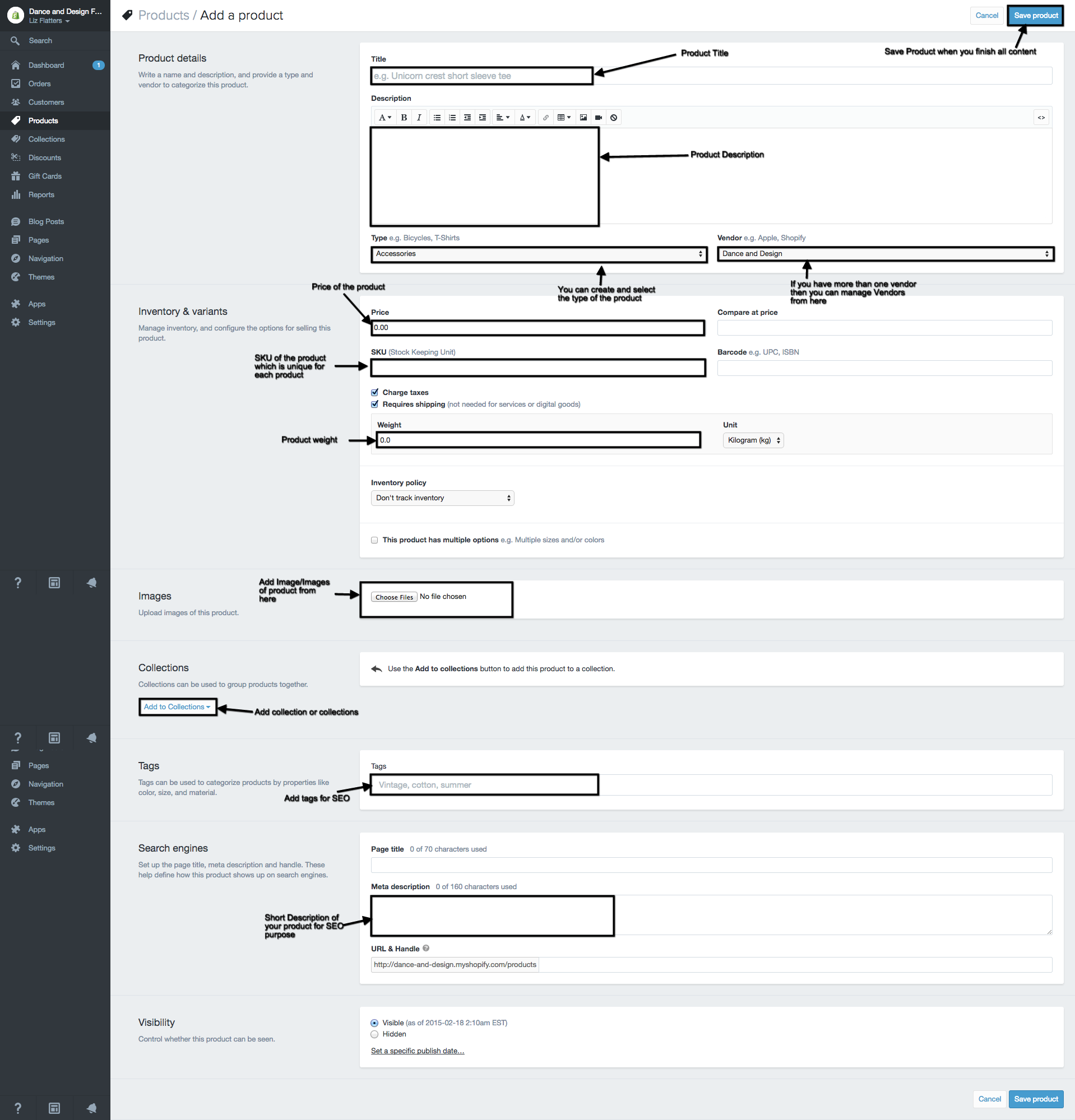
There are a few sections on the product page:
Product details
In this section you need to add Product Title and Product Description which will appear on your website when viewed by a customer.
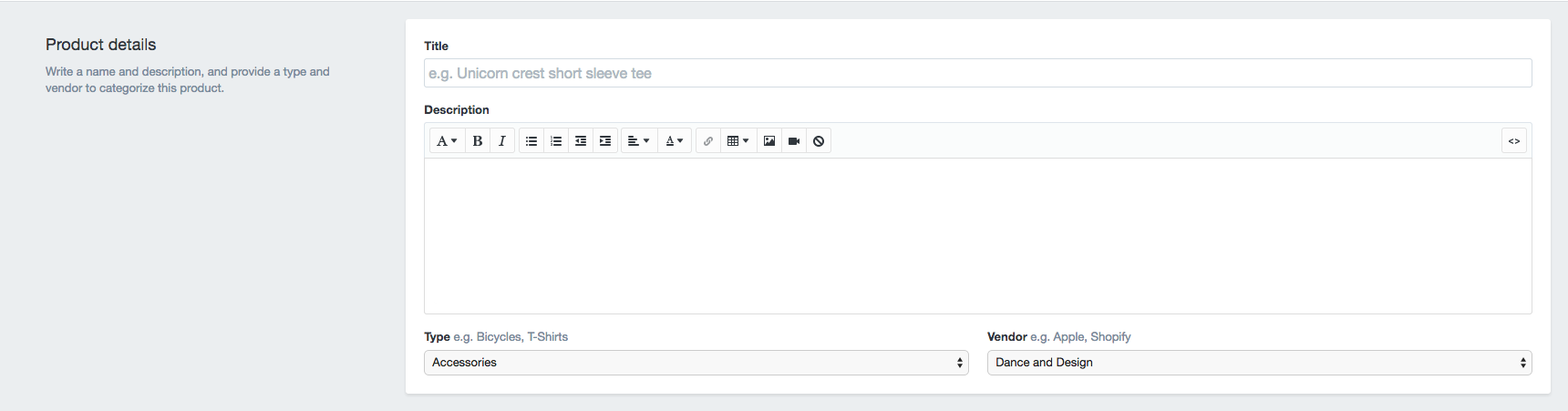
Note: if you want to create a Type of Product or a Vendor [if you have more than one vendors for your store] you can do so by selecting either as seen below, it will then give you the option to create a new…
Inventory & variants
When you add a new product this screen will not appear however when you come back in and update it you will see the below screen.

If you don’t have any other variations of this product you will not need to worry but if you have a clothing store and have different colours, sizes, prices for each size then you can add all of these options once you save the product the first time. See below how this section will look.

Now if you want to add variations [colour, size, price for each size] click on the “edit options” link. It will open the following popup window.
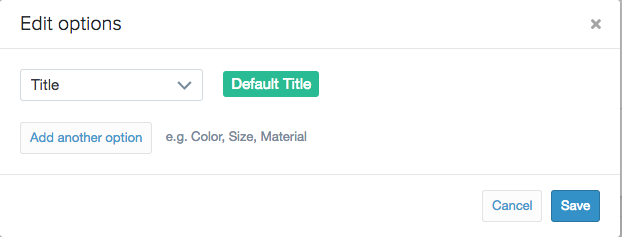
Either you keep the “Title” option and add more options. If you want to delete the “Title” option first you need to add more options and then it will allow you to delete that option. After all these changes all these options will appear when you click on “Add a variant” See below how the window will appear when you click on “Add a variant”
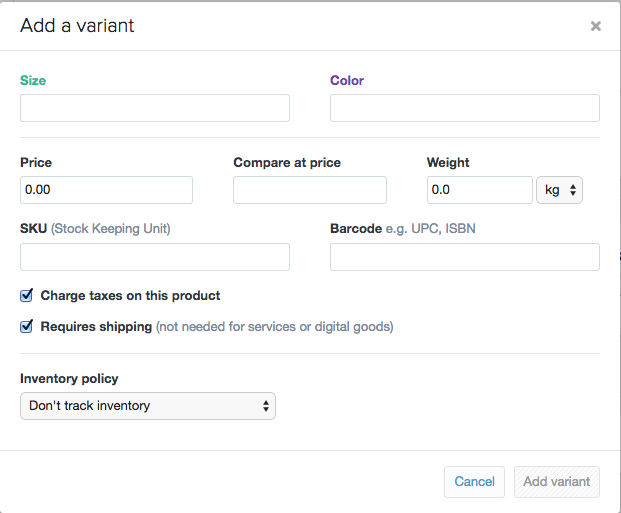
Here on this you can see Size and Colour added. You can add price, Weight, SKU for particular sizes and colours.

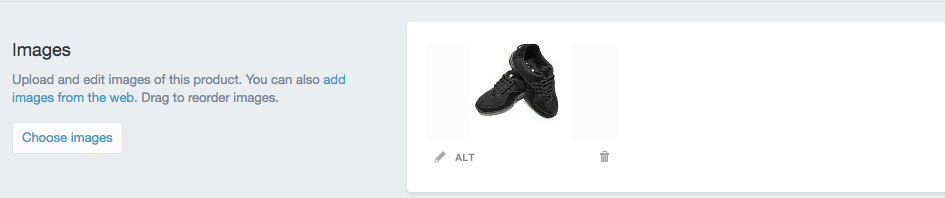
In this section you can add a main Image for your product as well as gallery for your product. Click on the “Choose Images” button to add images. See how it will look once you add the images.
This is a section where you can put categories where you would like your product to show. To add a Collection you need to click on “Collections” from left sidebar and can add collection. Click here to see how to add a collection. Once you add a collection it will come up on the product page and you can select the collection.

