Most areas of the site have the same content editing system, when you come across one of these panels you can follow the following guide:
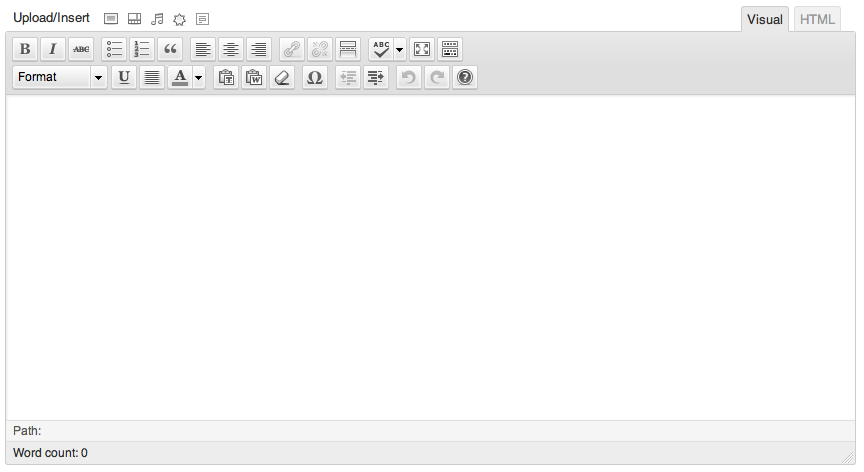
If you are familiar with Microsoft Word or any other word processor you will have no problems understanding the basic functions of the editing panel. Most functions will toggle on and off when pressed.
These perform as they usually would in a word processor, keep in mind that some fonts utilised on your website may not have a strikethrough character and will not display when used. Though we would recommend never using a strikethrough unless absolutely necessary.
Select either of these to create the desired list. It is always best to start a list from scratch rather then apply a list to existing lines of text. Pressing Enter creates a new list item.
If you need to indent a list to create sub-lists, use the indent text buttons over the the right of the toolbar (explained below).
When you are finished creating a list press enter to create a new item, then toggle off the list button used before.
Selecting text and pressing block quote will usually indent and italicise.
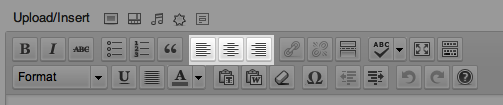
Alignment will change the direction that the text flows from. Most of the time the alignment will be left, though on occasion you may want a centre or right aligned section. Toggle these on and off to change.
Links will be explained in further detail on a separate page, these buttons are used to create and remove links when required.
The read more tag is used extensively in websites with any “post” based content, that is where there may be an excerpt or several excerpts of articles/news/information on one page, from which you can be taken to the full article, the read more tag creates a breakpoint in the text where the excerpt will cut off.
Spell check scans the current page for spelling errors when clicked and prompts you to replace any words it picks up, it does not run automatically so its a good idea to run it when you’re done editing the page.

Full screen editing does exactly what the name implies, takes you to a full screen editing area where you are free from the distractions of the WordPress application. Great for concentrating on the content of your page.
“Kitchen Sink” is a toggle button that enables an array of other controls “listed below” as a general rule we will make sure this is enabled before handing the site over. But in the case that it isn’t, just click it to enable the “Kitchen Sink”.
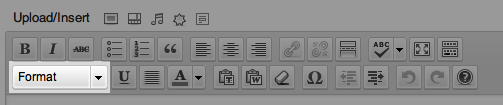
The format list is a drop down selection of the various styles of text available on the web, these range from default paragraph text to 6 levels of heading.
Headings must always be used in correct heirarchy, that is for example:
Breaking such structure will result in poor SEO, readability and general aesthetics.
Underlines should be used rarely on websites as they are often misinterpreted as links.
Justify adjusts the space between words so that the first and last word are aligned to the left and right edges of the text box respectively. This is usually something we will hard style in to the website and should only be used if you are completely sure its needed.

Font colour is something we set on the development side of things and should always be left default, expect strange results if you try to change these, if you would like a different colour to use regularly please check with us and we can set something up.

We strongly recommend against pasting directly from Microsoft Word, Publisher, or any other word processing system, purely because it tends to drag a lot of nonsense in to the page along with the text, one way of bypassing this (sort of) is to use the Paste from Word button, a window will open and you can paste whatever is in your clipboard into it, pictures and shapes will not be included.
When you do notice strange artefacts/behaviour with the text, you can highlight it and select the Clear styles button, this erases all custom formatting on a text. It’s good practice to use this at random intervals to make sure nothing is slipping through.

Much like “Symbols” in Word, custom characters enable you to get those intricate details that make a document really stand out. Easy to use, just click and select the character you want.

Indents are useful tools for structuring information, you may use these to separate paragraphs out from others and indent lists.

Like other word processing programs, you can undo/redo your changes, though keep in mind this will not fix everything and will not allow you to undo once you have saved, its always best to save often, keep in mind you can restore from previous revisions (of course not making mistakes is the best option).

Help takes you to the WordPress Rich Editor Basics panel where you can get a little more in depth information on all of these tools, it is highly recommended you read that if you have time.

The upload area will be explained in further detail in another area of the site.
