Websites equipped with an E-Commerce feature or online shop will have several unique areas in order to keep track of sales and products.
You can access the Orders tab from the Dashboard, underneath the Woocommerce dropdown.
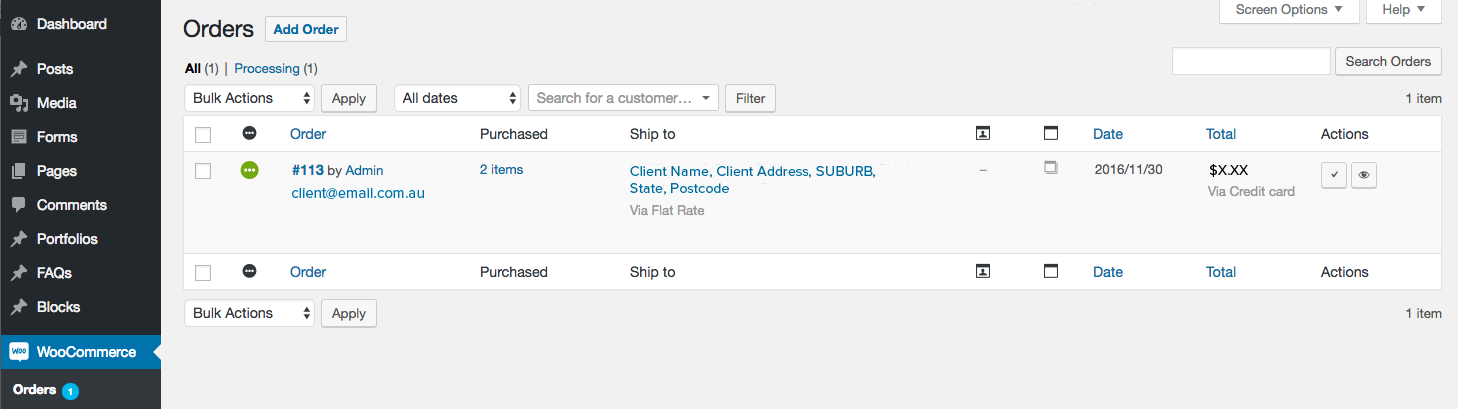
Here you can see a list of orders, most recent to the top, including quick access to the status of each order and the ability to change orders to complete.
To view more detail on an order click on the Order Number in blue to the left.
In this page you can see detailed information on the order including:

You can update the status of the order if you wish to track orders through the website.
You can verify payment several ways:

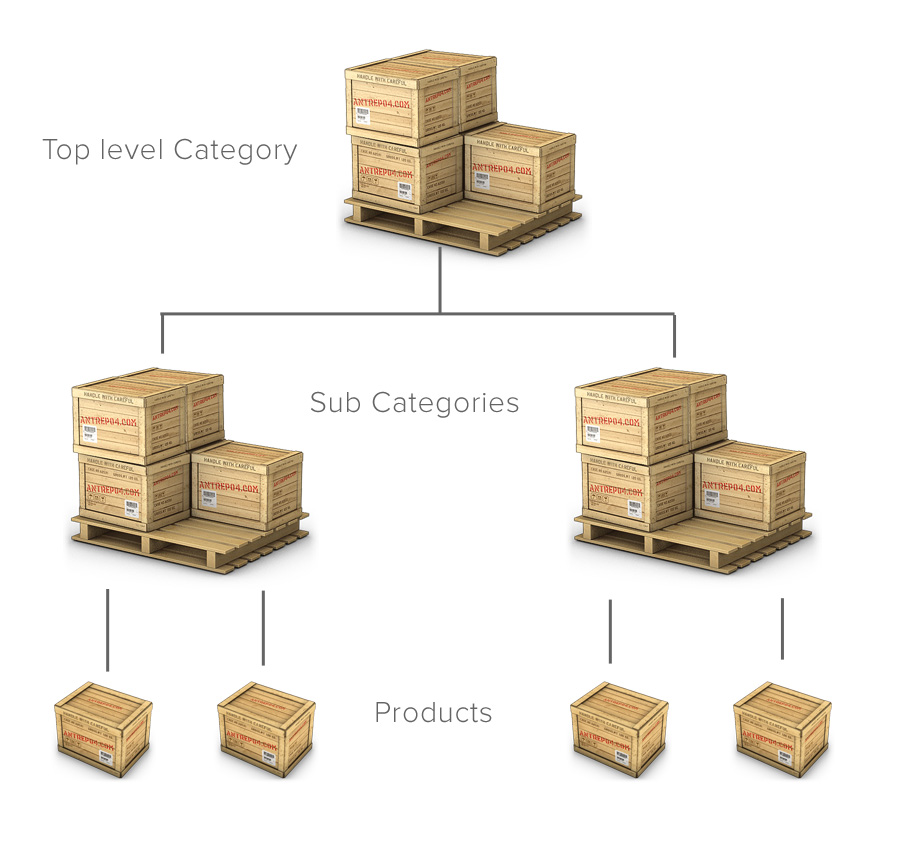
Products are stored on the site under the Products menu item, they are arranged into categories which you can add, remove and modify, you are also able to add sub-categories or categories within categories by selecting a category “parent” when creating a new category.
You can add products with the Add New button at the top of the Products page or the Add New button under Products in the sidebar menu, whichever is quickest.
On the Add New Product screen you can see various fields that may be filled out in order to detail a product. There are a few required ones though they will vary depending on your sites requirements, the most important fields are listed below:

Once you are finished with these fields, you can press the Publish button (blue button at the top) and save your product.
If you wish to change the details of a product, browse to the Product list from the sidebar menu Products.
Select the title of the product you wish to modify, follow the instructions above for information on each field, then press Publish.
Advanced features like tags, shipping classes, sub-sub-categories and shop settings will have to be set up by us, let us know what you would like to do and we’ll work out the best solution for your individual needs.
