Setting up Dropbox for sharing large files
You can read up and find out more about Dropbox here: https://www.dropbox.com/tour/ you can take some time to find out what it does and how to use it effectively. We use Dropbox to share files between clients for artwork, images, content and anything you might ordinarily send in an email, Dropbox works well for large file transfers that would ordinarily not be able to be sent via email.
Follow the steps below to join us on dropbox:
- If you received an Invitation from us via email, click the link in that email, otherwise go to https://www.dropbox.com/

- Download Dropbox and follow the steps to install, when prompted to create an account use the email address that (if applicable) we sent your invitation to.
- After installation you may need to log in to the dropbox website to accept the shared folder invitation we have sent you.
- Your new Dropbox folder will be located inside your home folder by default.
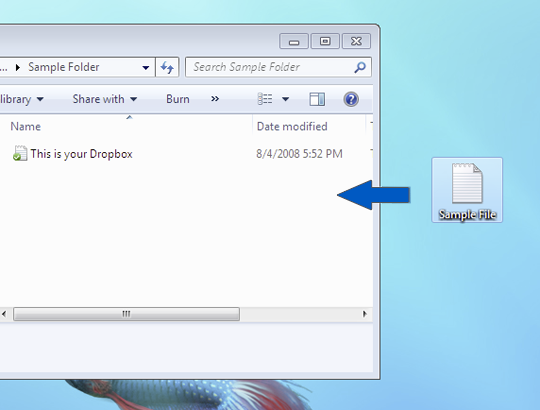
- Once you have accepted the shared folder invitation, there will be a new folder inside your Dropbox directory. You can drag and drop files directly into the dropbox folder. These files will upload and be sent across to us.
- Any changes you make to the folder on your computer will be reflected on our computers, please notify us at design@stayingintouch.com.au when you have added files so that we may check the folder.
You can find further help on Dropbox here https://www.dropbox.com/help or give us a call and we can walk you through it.
