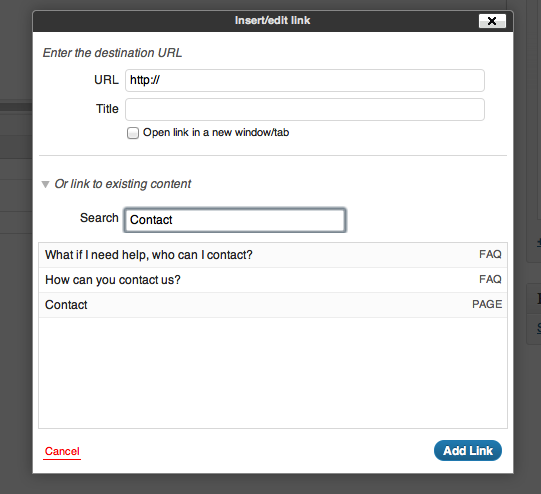
Adding Links
To add a link to a page, follow the following steps:
- Type the text you wish to appear as a link if it is not already there.
- Highlight the text with the cursor by clicking and dragging over it or double clicking a single word.
- Press the Add Link button from the toolbar (Chain Icon).

- In the window that pops up search for the page you want to link to in the box provided, click the page when found, you’ll notice the url appear in the box at the top. (Note: if you are linking to an external source, you may put the url in manually.)

- Enter a title in the box below the url (The title appears when the link is hovered over)
- Press the blue “Add Link” button. If successful the text will take the colour of a link on the site (Varies but mostly blue)
Editing / Removing a link
To edit an existing link simply place the cursor in the link by clicking the word, then press the link button again (Chain Icon), this will take you to the link panel where you can modify the target of the link.
To remove a link simply select it with the cursor, then press the “Remove Link” button (Breaking chain icon).